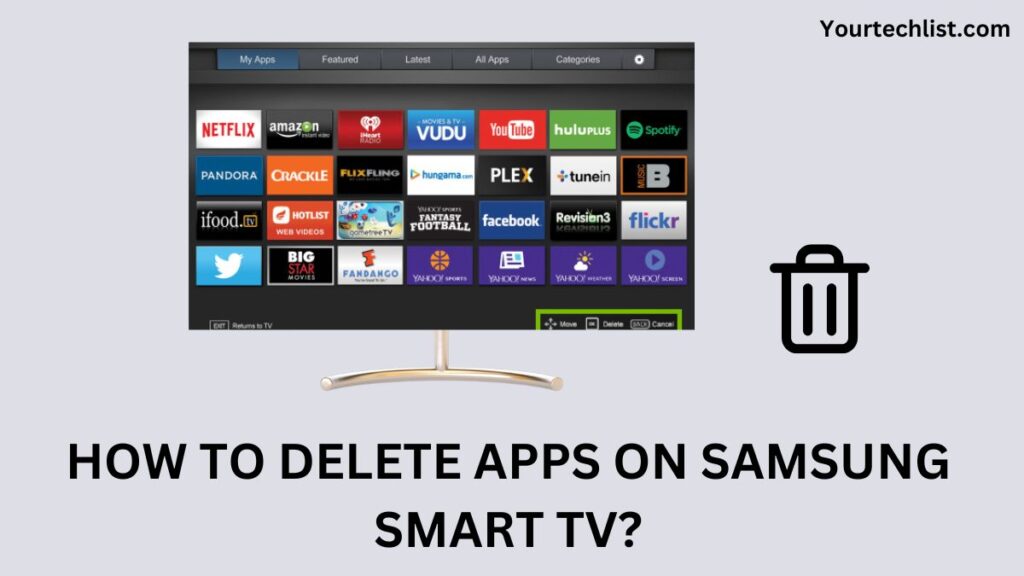
How to delete apps on Samsung smart TV: Televisions have become one of the major parts of human life. We cannot imagine staying at home with small children or elderly people without a television. Even though, users find gadgets and apps replace televisions at times. But, users cannot completely ignore televisions. Today, let us see about the Samsung smart TV. And specifically, let us note how to delete apps on Samsung smart TV.
Television lovers know that Samsung smart TVs are more prominent. They, offer users numerous features and services. The Samsung company released its internet TVs in the year 2007. And then, they launched flat TV in the year 2009. After that, they launched the HD SD LED TVs in the year 2010. They also keep changing the features offered according to the requirement of the consumers and the era. In addition, the users are provided with the best audio and video qualities. Moreover, the users are also, provided with preinstalled apps on Samsung smart TVs.
HOW TO UNINSTALL APPS ON SAMSUNG SMART TV?
The users can delete the default apps because it comes along with the TV as a default setting. The users may find these apps preinstalled in the Samsung smart TVs. So, let us see how to delete the apps installed by the users after getting the smart TV.

- ON OLD MODEL SAMSUNG SMART TV
- 2017 -2019 SAMSUNG SMART TV MODELS
- 2020 SAMSUNG SMART TV MODELS
UNINSTALL APPS ON OLD MODEL SAMSUNG TV
Step 1:
Initially, the user should turn on the Samsung smart TV.
Step 2:
Then, the user should click on the “Home button” on the TV remote.
Step 3:
After that, the user should select “Apps”.
Step 4:
And then, the user should select “My apps”.
Step 5:
The user should click on the “Option” seen on the screen.
Step 6:
After that, the user should click on “Delete”.
Step 7:
Now, the user should select the app.
Step 8:
Then, the user should click on the “Delete” seen at the bottom of the screen.
Step 9:
The user will have to click on “Delete” once more for confirmation.
Step 10:
The User will find a status bar showing the progress of the deletion of the apps.
Step 11:
Thus, the user will find the apps or apps deleted from Samsung smart TV.
UNINSTALL APPS ON 2017 TO 2019 SAMSUNG SMART TV MODELS
STEP 1:
Firstly, the user should turn on the Samsung smart TV.
STEP 2:
Then, the user should click on the “Smarthub button” on the smart TV remote.
STEP 3:
And then, the user should select “Apps”.
STEP 4:
After that, the user should select “App settings”.
STEP 5:
Then, the user should select the app.
STEP 6:
The user will be able to see a pop-up, the user should select “Delete” from the options available.
STEP 7:
Then, the user should confirm deletion once more by clicking on “Delete”.
STEP 8:
Thus, the user will find the apps or apps removed or uninstalled.
FINAL VERDICT
Therefore, users can easily uninstall or remove or delete apps from Samsung smart TV. The users may find a lack of storage space as a major problem in installing new apps. And so, the users can delete or remove the unused apps and make use of that space for other apps. So let us try uninstalling (OR) and deleting the apps on the Samsung smart TV of any version. For that, the users can follow the above-given guidelines. Just give a try and check how it works.
MORE SAMSUNG SMART TV GUIDES
- NOW TV ON SAMSUNG SMART TV
- HOW TO DOWNLOAD AND ACTIVATE XFINITY STREAM ON SAMSUNG TV?
- PEACOCK TV ON SAMSUNG SMART TV
- HOW TO ADD APPLE TV APP ON SAMSUNG SMART TV?
THANKS FOR READING……..


